Where exactly downloaded Reels go on an iPhone?
The downloaded Instagram Reels location on iPhone can be surprisingly confusing. You download a Reel, open your gallery a moment later, and… nothing. Did the video disappear, or was it saved somewhere else?
The answer depends on how you downloaded it. In this guide, you’ll learn exactly where your Reel goes, why it may not appear in Photos, and how to find it in seconds.
Where Does Downloaded Instagram Reels Go on an iPhone?
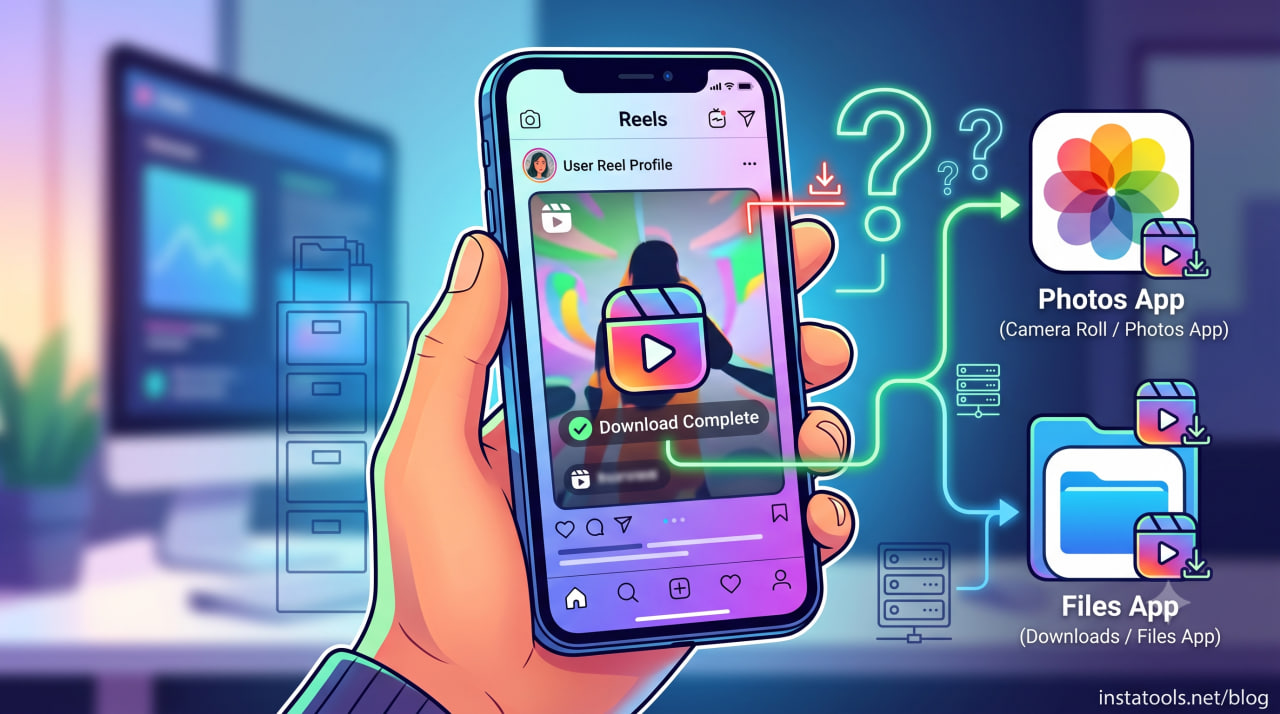
The downloaded Instagram Reels location on iPhone depends entirely on the method you use to download the video.
Instagram’s built-in download feature, Safari, and third-party apps don’t always save files to the same place. Knowing which method you used is the easiest way to determine where downloaded Reels are stored.
· Downloaded Using Instagram’s Built-in Download Button
If the creator has enabled downloads, Instagram lets you save the Reel directly to your device. In most cases, Instagram Reels on iPhone downloaded this way are automatically stored in the iPhone Photos app.
Read more: If you’re wondering whether you can download Reels posted by other users, check out our guide on Can You Download Someone’s Instagram Reels?
You can usually find the video in the Recents album, along with your latest photos and videos. Depending on your region or Instagram version, the downloaded Reel may also include an Instagram watermark that credits the original creator.
· Downloaded Using Safari
Many people use online downloader websites for an Instagram video download on iPhone. When you download a Reel through Safari downloads, the video typically doesn’t appear in your photo library immediately. Instead, it’s first saved to the Files app.
Important: For users who need a quick way to download Reels, tools like Instatools’s reels downloader provide a simple alternative to manual saving methods.
To locate it, open the Browse tab, then go to the Downloads folder on iPhone and look for the downloaded file. If you’d like the video to appear with the rest of your media, tap the Save Video option to copy it into Apple Photos, where it can be accessed just like any other video.
· Downloaded Using a Third-Party App
Apps designed for Instagram Reel download don’t all use the same local storage. Some automatically save Instagram Reels to iPhone as soon as the download finishes, while others store them in the iPhone Downloads folder or within the app itself until you export them.
If you can’t find your Reel right away, check the app’s download settings or Reel download storage first. Since every app works differently, the final downloaded Instagram Reels location on iPhone can vary depending on the downloader you use.
How to Find Downloaded Reels on Your iPhone?
If you can’t find downloaded Instagram Reels, don’t worry. The video’s location depends on how it was downloaded. In most cases, checking a few common locations is all it takes to locate the file.
1. Check the Photos Library
If you downloaded the Reel using Instagram’s built-in download option or an app that saves videos automatically, start by checking your photo library.
- Open the Photos app.
- Go to your recent videos or media.
- Look for the newest file among your downloaded videos on iPhone.
This is the first place to check for Instagram Reels in the Photos app, as many downloads are automatically added to your media library.
2. Check the Files App
If you downloaded Reels on iPhone through Safari or another browser, the Reels are often in the Files app instead of your photo gallery.
- Open the Files app.
- Tap Browse.
- Open the Downloads folder.
- Search for the downloaded video.
Many browser downloads appear as Instagram Reels in the Files app. Once you locate the file, you can open it, share it, or move it to your Photos library for easier access in the future.
3. Use Spotlight Search
If you’re still unable to locate the Reel, use Spotlight Search.
- Swipe down on the Home Screen.
- Type part of the file name, “Instagram,” or simply “video.”
- Open the matching result if it appears.
Spotlight searches across your device, making it one of the quickest ways to locate a file when you’re unsure about the iPhone Reels download location.
If none of these methods work, the download may not have completed successfully, or the file may have been saved to a different location by the downloader you used. Following these steps is the easiest way to identify the correct downloaded Instagram Reels location on iPhone.
Saved Reels vs Downloaded Reels: What’s the Difference?
Before trying to locate a Reel, it’s important to understand the difference between saving and downloading. Many users think these actions are the same, but they work in completely different ways.
| Saved Reel | Downloaded Reel |
| Stored in your Instagram account | Stored in your iPhone’s memory |
| Requires an internet connection to watch | Can be viewed offline |
| Removed if the creator deletes the Reel | Stays on your device until you delete it |
| Found in Profile > Saved | Usually found in Photos or Files |
The Instagram Save feature simply bookmarks a Reel inside your account so you can easily find it later. It does not download or create a copy of the video on your device.
In contrast, downloaded Instagram Reels are actual video files stored on your iPhone. Once downloaded, you can watch, share, or move them even without opening Instagram, and they’ll remain available until you delete them manually.
Read more: If you’re trying to keep a copy of someone’s content without downloading it, you might also wonder whether Instagram notifies users when you take a screenshot of their Story or post.
Why Can’t I Find My Downloaded Reel?
Sometimes a Reel seems to disappear even though the download appeared to finish successfully. In most cases, the video hasn’t been lost; it has simply been saved to a different location or wasn’t downloaded correctly. Checking a few common issues can usually help you find the file.
Here are the most common reasons:
- The download didn’t finish successfully: A weak internet connection or an interrupted download can prevent the video from being saved.
- Your available storage space is full: If your device has very little free space, iOS may not be able to save new files.
- Download permissions were denied: If the app or browser doesn’t have permission to save files or access your media library, the Reel may never be stored on your device.
- The video was saved somewhere unexpected: Some download methods store videos in Files instead of Photos, so it’s worth checking both locations.
- The third-party downloader didn’t complete the process: Some apps require an extra export or save step before the video becomes available.
- Your available iPhone storage is too low: Even small video files require free space before they can be downloaded successfully.
If you’ve checked all of these possibilities and still can’t find your Reel, try downloading it again using a stable internet connection.
Also, if your Reel won’t save to your Camera Roll at all, check out our guide on Why can’t I save an Instagram Reel to a camera roll? for the most common causes and fixes.
Conclusion
Understanding the downloaded Instagram Reels location on iPhone makes it much easier to manage your videos and quickly find them whenever you need them.
Once you know the difference between saved and downloaded Reels, you’ll never have to wonder where your favorite videos went again.