
Why won’t my Instagram profile picture update?
You’ve just snapped the perfect selfie, uploaded it as your Instagram profile picture, and… nothing changes. The old image is still there, mocking your efforts.
This Instagram profile picture not updating issue can be surprisingly common, leaving users frustrated and confused.
In this guide, we’ll explore all the hidden reasons behind this frustrating behavior and provide clear, practical solutions so your new profile photo finally appears exactly as intended. Get ready to take control and never deal with a stuck profile picture again!
Before anything try our instatools Instagram profile downloader to view and download profile pictures in full size.
(7) Main Reasons Your Profile Picture Won’t Update
Even if you’ve tried multiple times, sometimes your new Instagram profile picture just won’t appear. Frustrating, right? Before you give up or think it’s a permanent Instagram profile picture problem, it’s worth knowing exactly what’s stopping the update.
Read more: Do not forget after resolving your profile picture update issue, the next step is choosing the right image. Our guide on about the Best Instagram Profile DP Pictures features creative ideas and best practices for making your Instagram profile stand out. Also, if you’re unsure about the ideal dimensions, check the Best Size for Instagram Profile Picture to avoid cropping and resolution issues.
Keep reading, we’ve outlined all the main causes and solutions to make sure your profile finally reflects the image you want.
1. Internet Connection Problems
One of the main reasons your Instagram profile picture not updating is a weak or unstable internet connection.
When your Wi-Fi signal is low or mobile data is inconsistent, Instagram cannot load the new photo, leaving the old profile picture visible.
Users often encounter they can’t change Instagram profile picture message, experience slow updates, or face repeated failures to upload. Even repeated attempts may not work until the connection stabilizes.
Solution:
- Switch to a reliable Wi-Fi network or ensure strong mobile data coverage
- Turn your internet connection off and on to refresh connectivity
- Make sure other apps can load content properly to rule out broader network issues
2. Outdated App or App Bug
Sometimes your Instagram profile photo won’t change is caused by a bug within the app or by using an outdated version of Instagram.
Older versions may not support recent features, or an Instagram app bug can prevent your new profile photo from uploading at all. This is one of the most common reasons users experience delays or see their old profile picture remain unchanged.
Solution:
- Update Instagram to the latest version to ensure all new features and fixes are applied
- Close the app completely and reopen it to clear minor glitches
3. Cache Problems
Another frequent reason for the Instagram profile picture not updating is an Instagram cache issue. When the app stores old files in its memory, it can cause previous images to persist, creating a profile picture update issue.
Even after uploading a new photo, your profile may still display the old one because the app is reading cached data instead of refreshing properly.
Solution:
- On Android devices, go to Settings > Apps > Instagram and clear the cache to force the app to reload fresh data
- On iOS, uninstall and reinstall Instagram to remove old cached files, a process often referred to as app cache clearing
4. Photo Format or Size
Sometimes the Instagram profile image won’t update is caused by your image not meeting photo format compatibility standards.
Instagram supports common formats like JPEG or PNG, but large or unsupported files such as TIFF or BMP often fail to upload, resulting in an Instagram photo upload error.
Even a perfectly good photo may not appear if it doesn’t conform to these standards, which can be frustrating when you’re trying to refresh your profile.
Solution:
- Convert your photo to JPEG or PNG to ensure compatibility
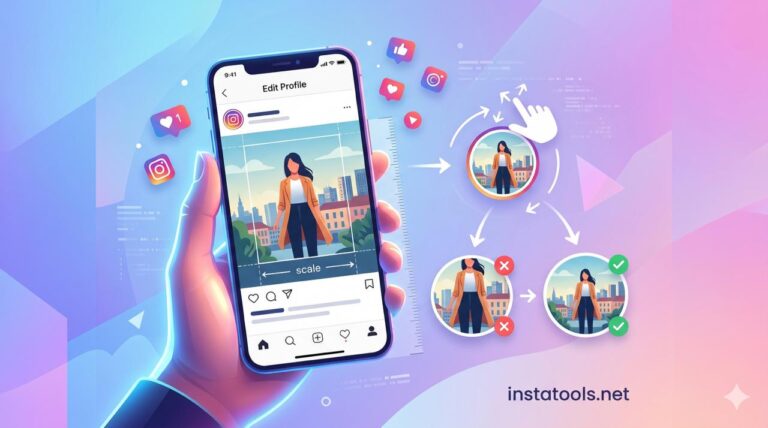
- Use a square format (1:1) for best display on all devices
5. Instagram Server Issues
Occasionally, an Instagram server error can block profile updates entirely. This means your Instagram profile update problem isn’t caused by your device, internet, or app, the issue lies with Instagram’s servers.
During these times, uploading a new profile photo may fail repeatedly, no matter how many times you try.
Solution:
- Wait for Instagram servers to resolve the issue
- Check server status on outage monitoring websites to confirm if it’s a widespread image upload problem
6. Account Restrictions
Certain violations or limitations on your account can lead to account restrictions, which may block your attempts to update your profile photo. This can create challenges in profile photo troubleshooting because the app may refuse to accept any new uploads.
Solution:
- Check notifications for warnings, temporary bans, or restricted features
- Contact Instagram support help if you cannot resolve the issue yourself
7. Mobile App Glitches After Updates
Sometimes, after installing a new version of Instagram, an Instagram update bug or other app glitches may prevent your profile photo from changing.
These glitches are common after app updates and can stop your Instagram profile picture not updating even if all other settings are correct.
Solution:
- Restart your phone to clear temporary glitches
- Log out and log back into Instagram to resolve Instagram login issue
Additional Tips to Fix Instagram Profile Picture Display Issues
Sometimes, even after following all the main Instagram profile picture fixes, your Instagram profile picture may still not appear correctly.
Read more: Want your profile picture to appear exactly as intended? Check out our guide on How to Get the Full Picture on Instagram Profile Pic for tips on choosing the right dimensions and avoiding image cropping.
These additional tips address common display issues, connectivity problems, and account settings that can block updates.
- Customize Properly: Make sure your profile customization settings in Instagram allow you to change your photo. Sometimes, privacy or account settings can prevent new images from being displayed, even if the upload seems successful. Double-check your settings to ensure nothing is blocking the update.
- Upload Smoothly: Avoid interruptions during the upload process. A weak or unstable connection can trigger an Instagram connectivity problem and cause delays or failures when updating your profile picture. Using a reliable Wi-Fi network or strong mobile data can make the process seamless.
- Check Display: If your new image doesn’t appear after uploading, it might be a profile picture loading error or your Instagram profile photo not loading properly due to cached files or temporary app glitches. Refresh the app, clear cache, or restart your device to ensure the new photo displays correctly.
Read more: Once your new profile picture is uploaded successfully, you may also want to learn How to Zoom Instagram Profile Pictures to view profile photos in full size or check how your image appears in greater detail.
Summary
Dealing with the Instagram profile picture not updating can be frustrating, but most issues are solvable by checking your connection, app version, cache, photo format, or account settings.
Understanding these common causes will help you update Instagram profile photo smoothly and avoid repeated failures. Take control of your profile and make sure your new photo appears exactly as intended.
Have you ever struggled with your Instagram PFP not showing? Which solution worked best for you? Comment and help others fix it too. Try these quick fixes today and finally see your fresh profile photo live. Follow these steps and stop letting app glitches hold your profile back.