
Instagram Hacked? How to Recover Your Account (2026 Steps)
Instagram Hacked? How to Recover Your Account
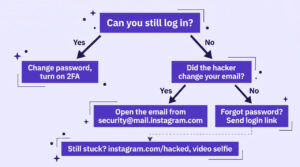
If your Instagram was hacked, first check your email for a message from [email protected], which is how Instagram lets you reverse a changed email address. Then go to instagram.com/hacked in a desktop or mobile browser and enter your username, phone or email. Which steps you need depends on what the hacker changed, so pick your situation below.
Pick your situation
- You can still log in
- Password changed, but you still have your email or phone
- Email or phone was changed too
- Instagram asks for a video selfie
- The hacker turned on two-factor authentication
- Someone is pretending to be you
You can still log in
If you can get in but something looks off, act before the hacker notices. Instagram’s guidance for this case:
- Change your password. This also logs out every other device, which kicks the hacker out. [VERIFY: exact menu path for changing the password]
- Turn on two-factor authentication. Our account security checklist has the exact steps.
- Confirm the phone number and email on the account are yours.
- Check Accounts Center and remove any linked accounts you don’t recognise. [VERIFY: exact menu path]
- Revoke any third-party apps that look suspicious.
- Secure your email account too. Instagram’s own help page notes that anyone who can read your email can probably get into your Instagram account as well.
Common signs of a hack
Instagram doesn’t publish a single checklist, but these are the signs people most often report: password-reset or login-code emails you never asked for, an email address or phone number you didn’t change, posts or messages you didn’t send, and devices in your login list that aren’t yours. One caveat: an unrequested password-reset email doesn’t always mean a hack. Someone may simply have typed your address by mistake.
Real Instagram emails only come from @mail.instagram.com. If a “security alert” arrives from any other address, treat it as phishing. Instagram also lets you view its recent official emails in the app, which is a quick way to check. [VERIFY: menu path for the recent emails screen; the help page says the last 14 days]
Password changed, but you still have your email or phone
Ask Instagram for a login link:
- On the login screen, tap Forgot password?
- Enter your username, email or phone number.
- Tap Send login link.
- Complete the captcha.
- Open the link from the email or text message and set a new password.
If the email never shows up, check your spam folder. If your Facebook account is linked, Instagram may also offer Facebook verification. If you no longer have access to that username, email or phone, use the “visit this page” support path shown in Instagram’s hacked account guide.
Email or phone was changed too
This is the “instagram hacked email changed” case, and there is a time-sensitive shortcut. When an email is changed from the Profile page, Instagram sends a message from [email protected] to your original address, and a second one to the new address.
- Open your original inbox and find the message from [email protected].
- Use its link (labelled “secure my account”) to reverse the change.
- Then follow the login-link steps above to reset your password.
Instagram only sends this message when the email was changed from the Profile page, so you may not get one. See Instagram’s help page on what to do if your email was changed.
If you can’t reverse the change, use instagram.com/hacked and request support from Instagram on mobile. Enter a secure email address that only you can access. Meta emails the next steps there, and they usually lead to the identity check below.
If you lost access to your email or phone
Instagram can’t help you regain a lost email or phone number. Try recovering it through your email provider or carrier. Instagram’s help page says that if the email can’t be recovered and no Facebook account is linked, it is unable to give you access. That is a hard limit, so it’s worth acting on the email side first.
Identity check with a video selfie
When the usual routes fail, Meta verifies that you own the account. What it asks for depends on the account:
- The account has no photos of you: Meta asks for the email or phone number you signed up with, and the type of device (iPhone, Android, iPad or other).
- The account has photos of you: you record a video selfie, turning your head in different directions.
- Per Instagram’s help page, the video is never visible on Instagram and is deleted within 30 days.
- If the check fails, you can submit a new video.
The hacker turned on two-factor authentication
Instagram’s help pages don’t spell out this case, and no official page confirms what happens when a hacker has enabled 2FA. Forums disagree about whether recovery is possible, so don’t count on a guarantee. What Instagram does document is the general route:
- Go to instagram.com/hacked and enter your username, phone or email.
- Request support from Instagram and enter a secure email only you can access.
- Follow the steps Meta emails you, including the video selfie if requested.
- If a video fails, submit a new one.
[VERIFY: whether Accounts Center offers any separate recovery option when someone else has set up 2FA]. If you get back in, turn off any 2FA method you didn’t set up and replace it with your own.
Someone is impersonating you
A fake profile using your name and photos is a different problem from a hacked account, but it’s often part of the same mess. To report it:
- Open the fake profile.
- Tap the three dots (Options), then Report, then Report Account.
- Choose It’s pretending to be someone else.
- Pick the type of impersonation and follow the prompts.
The report is anonymous. If you don’t have an Instagram account, use Meta’s impersonation contact form. Details are on Instagram’s impersonation help page, which also says Meta Verified subscribers get impersonation protection.
After you get back in
Run Security Checkup. Instagram’s older guidance puts it at profile menu (top right) > Settings > Accounts Center > Password and security, then scroll to Security Checkup. It covers a strong password, two-factor authentication and your recovery contact details. [VERIFY: menu names in the current app version, since the source predates 2025]
Use a password you don’t use anywhere else, and secure your email account as well. Our guide to securing your Instagram account has the full checklist, so it isn’t repeated here. While you have access, it’s also smart to download a copy of your Instagram data.
If the account has been more trouble than it’s worth, you can instead delete your Instagram account.
Scams to avoid while you’re locked out
Locked-out people are easy targets, so a few safety rules apply:
- Be wary of anyone offering to “recover” your account for a fee, or asking for your username and password. The steps above run through Instagram and Meta’s own pages, and none of them involve handing your login to a third party.
- Never share a login code with anyone, including someone in your DMs who says they’re “support”.
- Only trust emails from @mail.instagram.com, and type instagram.com/hacked yourself instead of clicking a link in a message.
FAQ
I got a password-reset email I didn’t ask for. Was I hacked?
Not necessarily. Instagram says someone may have typed your email address by mistake. Don’t click anything you’re unsure about, check that the sender is @mail.instagram.com, and if you’re worried, change your password and turn on two-factor authentication.
Who can see my video selfie?
According to Instagram, the video is never visible on Instagram and is deleted within 30 days.
Is there any way back if I lost the email too?
Try to regain the email through your provider first, because Instagram can’t do that for you. If the email isn’t recoverable and no Facebook account is linked, Instagram says it is unable to give you access.
Does changing my password log the hacker out?
Yes. Changing your password logs out all your other devices, according to Instagram’s help page. Do it as soon as you have access.