Why Can’t I Save an Instagram Reel to a Camera Roll? (2026 Guide)
You tap Download, wait a moment, and open your gallery, only to find nothing there. If you’re facing Instagram reel not saving to camera roll, the problem may not be as simple as it seems.
It could be caused by hidden Instagram settings, creator restrictions, missing permissions, or a temporary app bug. Before trying random fixes, let’s uncover what’s really preventing your Reels from being saved in 2026.
What Are the Reasons Instagram Reel Not saving to Camera Roll?
If your Reel won’t download, don’t assume your phone is to blame. In most cases, the issue is caused by Instagram settings, creator preferences, app permissions, or temporary platform problems.
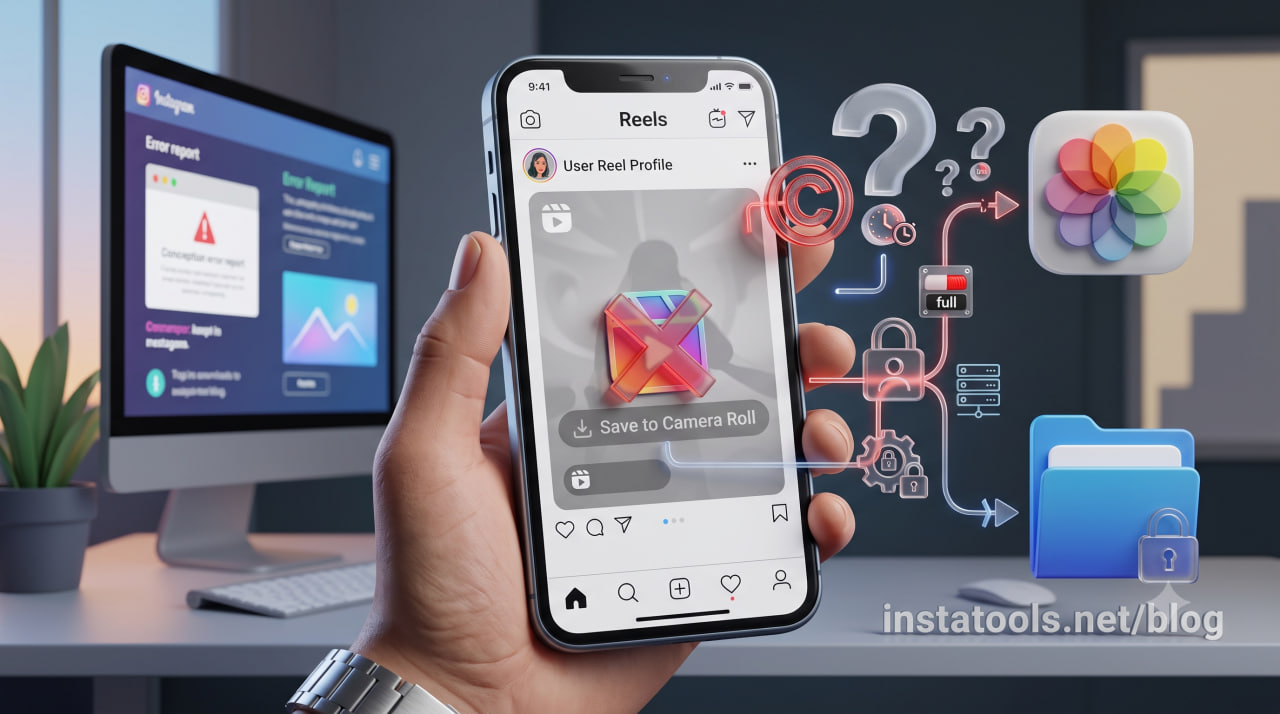
If you’re experiencing the ” Save to Camera Roll option is missing, one of the following reasons is likely preventing the video from being saved.
- The Creator Disabled Download: Instagram allows creators to decide whether their public Reels can be downloaded. If downloads are turned off in Instagram creator download settings, the Save to Camera Roll option won’t appear, even if your app is working normally.
When the download option is unavailable, some users choose alternative methods like instatools Reels Downloader for saving publicly available videos.
- You’re Trying to Download Someone Else’s Reel: Not every Reel can be downloaded directly. If you’re wondering why you can’t download Instagram Reels, the creator may have disabled downloads, the Reel may belong to a private account, or Instagram may not allow downloading for that specific post.
- Your Instagram App Is Outdated: An old version of the app may not support the latest download features. If your Instagram app update is overdue, some functions, including Reel downloads, may not work correctly until you install the latest version.
- Storage or Photo Permission Is Disabled: Instagram needs access to your device before it can save media locally. Missing Instagram storage permission or Instagram photo permission can prevent the download from being completed, even if the process appears to finish successfully.
- Your Phone Storage Is Full: A lack of available storage space can stop downloads from completing. If your Instagram reel download not working issue started recently, check your device’s free storage and remove unnecessary files before trying again.
- Instagram Download Restrictions: In some countries or for certain types of content, download restrictions may limit the ability to download Instagram reels directly. These limitations are controlled by Instagram and cannot always be bypassed.
- Temporary Instagram Bug: Sometimes the problem isn’t related to your device at all. Temporary server outages, app glitches, or corrupted data can cause Instagram Reels not to save or prevent the download option from appearing. In most cases, the issue is resolved after updating the app, restarting your device, or waiting for Instagram to fix the bug.
Fortunately, most of these issues can be fixed in just a few minutes. In the next section, we’ll walk through the most effective solutions to get your Reels saving properly again.
How to Fix Instagram Reels Not Saving to Camera Roll?
If you’re still facing Instagram Reels not saving to camera roll, don’t worry. Most download problems can be fixed in just a few minutes by checking your app, device settings, and storage. Follow the solutions below in order until the Instagram Reel not downloading issue is resolved.
- Update the Instagram App: First, make sure you’re using the latest version of Instagram. Updates often include bug fixes that restore missing download features and improve overall performance.
- Check Photo Permissions: Instagram needs access to your device before it can save a Reel to the gallery successfully.
- Android: If you’re trying to download Instagram Reel on Android, open Settings > Apps > Instagram > Permissions and allow access to your photos and media. Then reopen the app and try again.
- iPhone: To download Instagram Reels on iPhone, go to Settings > Instagram > Photos and select Full Access. Without this permission, downloaded videos may not appear on your device.
- Restart Instagram: Close Instagram completely and launch it again. A fresh start often fixes temporary glitches that prevent downloads from finishing.
- Clear Instagram Cache (Android): On Android devices, clearing temporary app data can resolve unexpected download issues.
- Open Settings > Apps > Instagram.
- Tap Storage.
- Select Clear Cache.
- Try downloading the Reel again.
- Restart Your Phone: Restarting your device refreshes background services and can fix minor software conflicts affecting Instagram.
- Free Up Storage Space: If your phone is running out of storage, downloads may fail. In some cases, the Reel download unavailable message appears simply because there isn’t enough free space to save the file.
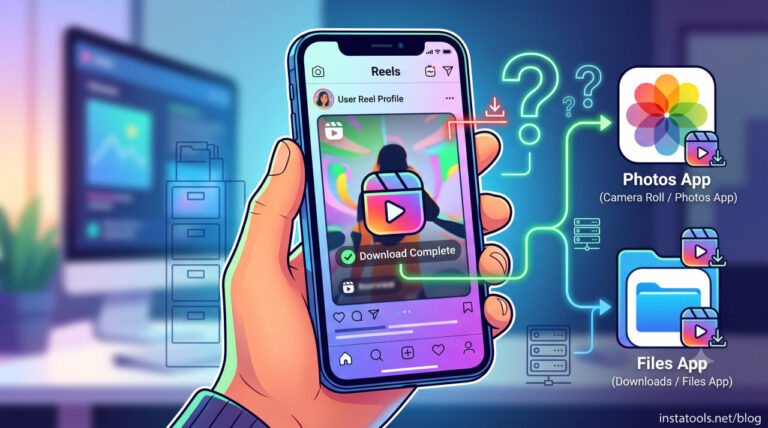
- Check Where the Reel Was Saved: Sometimes the download succeeds, but the video isn’t stored where you expect. If you notice an Instagram Reel missing from Photos, check the Instagram Files app location on your device. On some phones, the Instagram Reel is saved to Files instead of the Photos or Gallery app, especially when downloaded through certain browsers or file managers.
For more details, if your Reel was downloaded successfully but you can’t find it, check where downloaded Instagram Reels go on iPhone.
- Reinstall Instagram: If none of the solutions work, uninstall and reinstall Instagram. This removes corrupted app data and restores the app’s default settings, which can resolve persistent download problems.
After completing these steps, most users can save an Instagram reel to the gallery without any further issues. If the problem still exists, the Reel itself may not be eligible for downloading due to the creator’s settings or Instagram’s policies.
Can You Save Every Instagram Reel?
The short answer is no. Instagram doesn’t allow every Reel to be downloaded, and the available options depend on who posted the video, the account’s privacy settings, and the creator’s preferences.
If you’re dealing with an Instagram reel not saving to the camera roll, understanding these limitations can help you identify the real cause before attempting to save an Instagram reel to the camera roll.
- Your Own Reels: You can usually save your own Instagram Reel at any time. If you’ve enabled automatic saving before publishing, a copy of the Reel will be stored on your device after it’s posted.
- Public Account Reels: Reels shared by public accounts may include an Instagram download button, but only if the creator has chosen to make downloads available. If the option isn’t visible, downloading directly through Instagram isn’t possible.
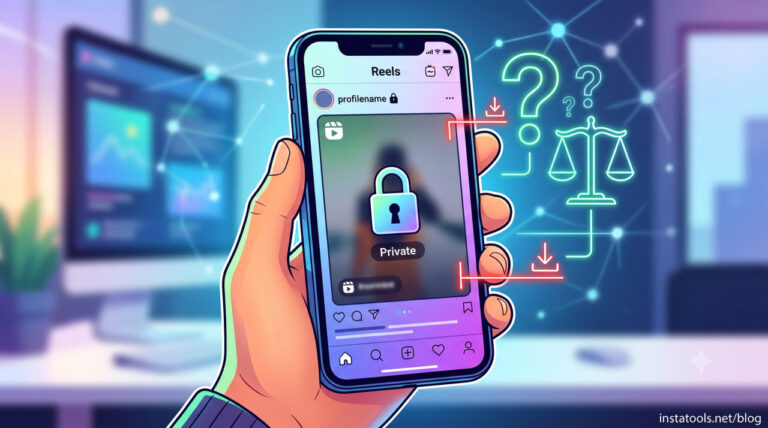
- Private Account Reels: When comparing public vs private Reels, private account content cannot be downloaded through Instagram, even if you follow that account. This restriction is designed to protect user privacy.
- Download Restrictions: Some videos may display a message indicating Instagram Reels download unavailable because of regional policies, account settings, or other platform limitations.
- Copyright Limitations: Instagram also applies Instagram copyright rules to protect creators’ content. Reels containing licensed music or copyrighted material may have additional restrictions, preventing them from being downloaded or shared outside the app.
Read more: Not every Instagram Reel can be downloaded directly from Instagram. If you’re trying to save a Reel posted by another user, check whether you can download someone else’s Instagram Reels and what restrictions apply.
Conclusion
If you’re dealing with Instagram Reels not saving to the Camera Roll, the cause is usually related to creator settings, device permissions, storage limitations, or a temporary Instagram issue.
By checking these areas one by one, you can often restore the download feature and save Reels without any hassle.